Showing posts sorted by relevance for query Gmail. Sort by date Show all posts

A sneak peek at Gmail on Android

Posted by Jonathan Matus, Product Marketing Manager, Android

The first Android-powered phone, the T-Mobile G1, is coming out on Wednesday. My friends know that I work on Android, and as you can imagine, I get asked about it all the time. I have a lot to say about the G1, but I always begin by telling them that lots of Google products, including Gmail, are available for free, on several mobile devices.

I've been using Gmail on the go for more than a year now and it's difficult to imagine my life without ubiquitous email access. It proves handy every day -- whether for keeping a close eye on a (very) busy inbox, finding the address of a party while already in the taxi, or sending out a spontaneous dinner plan while on the bus back home.

If you like using Gmail on your computer you'll feel very much at ease with Gmail on Android-powered phones. You can download documents and MP3s, manage and view labels, star and archive messages, save drafts and even report spam.


I check my email frequently and have two Gmail accounts -- one for work and one for personal life. Before I started using Gmail on the T-Mobile G1, I used to check my mail by actively reloading or refreshing my inbox on one of my other mobile devices. And with two email accounts, I had to repeat this twice each time.

Not anymore. With the combination of push email and notifications on the status-bar, I never have to check for new mail. Whenever a new message arrives, I immediately get notified (in real time) with a little "@" sign at the top (see image below on the left). With a single swipe I can pull down the notification pane and see my new messages (on the right).


But the best thing, in my mind, about Gmail on Android-powered phones, is the way email is deeply integrated with other applications. For instance, let's say I'm browsing the web, reading my favorite tech blog. When I come across a post that I'd like to share, I can simply press and hold my finger down on the link and then choose "share" to immediately create an email with that article's web address. The tight integration with Contacts on the device then allows Gmail to suggest contacts based on the first letters I type.


All of your Gmail contacts are immediately available on the phone upon first log-in. And whenever you create a new contact on the device it's automatically synced with your Gmail contacts and therefore immediately backed-up, so you never need to worry about losing your contacts if you lose or break your phone.

To learn more about Gmail on the world's first Android-powered phone, check out our Mobile blog post, the Gmail page on mobile.google.com/android, or watch this instructional video:


Link - from Gmail Blog
Related:
Invisible mode is here for Gmail chat
Del-eat your spam
New version of Gmail soon available in 37 languages
Have Gmail do your laundry
Read the rest of this entry »

Top 10 little-known Gmail features (Part 1)


Gmail has a bunch of lesser-known feature that can end up being very useful once you get to know them. I've put together a list of my top 10 favorite features that you may or may not be familiar with. Here are the first five; watch for the second batch sometime next week.

10. Custom "from"
Most people end up managing more than one email account -- some are personal, others might be for work or school. When I graduated from college, I wanted to keep my .edu address for alumni-related things, but made Gmail my primary personal address. My university made it easy to forward my .edu mail to my Gmail address, so I could read all my mail from my within my Gmail account. I was happy to find out that Gmail would actually let me send mail "as" my .edu address, so I could continue to keep that identity, while managing all my email from one place. Here's how to set that up.

9. Open attachments in Google Docs & Spreadsheets, or view as slideshow
If you are sending a Word document or Excel file as an attachment, Gmail lets you easily open it in Google Docs & Spreadsheets. (In case you're not familiar with Google Docs & Spreadsheets, it's our online word processor and spreadsheet application, which lets you store and access documents online and collaborate on them with anyone.) Since other people are working on many of the docs I receive as attachments collaboratively, it's really easy to just open them in Docs & Spreadsheets and create a single document to work from, rather than constantly sending versions of documents back and forth. If the attachment is a PowerPoint presentation, Gmail will recognize this and give you a link to"View as a slideshow." This will open a window with a Flash preview of the slides. This is great for quickly reviewing slides in the browser.


8. Gmail gadget for iGoogle
I use iGoogle to bring together a lot of the information I care about on the web (feeds, my Google Calendar, YouTube videos, etc). I use it as a dashboard at the start of my day to get an overview of what's going on in the world. I've added the Gmail gadget to my page to get a preview of my Inbox, which is great because it's one of the first things I'm interested in seeing.

7. Reply by chat

Most people know that you can chat with your contacts in Gmail if they're using Gmail too. But there are some subtle features that make chat particularly useful in the context of using your email, like replying by chat. If you've received an email and notice that the sender is online (by seeing the little green dot next to his or her name in the conversation), you can click the button "reply by chat." What's particularly convenient about this is that the chat will be archived as part of the email thread to which you replied. I like this most because it means when I search for anything related to that thread, I find the chat transcript alongside all the relevant email messages.


6. Gmail for mobile application
It wasn't that long ago that my cellphone could barely handle sending text messages. I didn't used to think of it as being an efficient place to access my email. That's changed -- big time. Email has become one of my primary forms of communication when on the go. Unfortunately, on a lot of phones, dealing with email can still be a pretty annoying experience, especially if you're not using a device like a PDA. Enter Gmail for mobile. It's fast, it syncs with your online account, and it gives you virtually all of the same Gmail functionality like search, filters, and access to your whole archive of mail.

Next week: another 5 for you.
Link - from Official Gmail Blog
Related From Google Blogs:
Tip: Your email, wherever you are on the web, with Toolbar
Almost new in Labs: SMS Text Messaging for chat
New Google Help Forums
The art of the field study
Read the rest of this entry »

Customize your Gmail with Google Labs and Emoticon

I have been using Gmail since the day it was born.That was a couple years ago. Impressed with it storage, until now I use Gmail and Yahoo as my main email. I even introduced Gmail to my company and open Gmail account for my boss :).

I remember a friend from HK send me a post card for gave her an invitation Gmail Link. Google marketing strategy by creating invitation link to sign up for Gmail was a big hit. At that time, there were people who sell invitation link on Ebay. Can you believe that.

Image representing Gmail as depicted in CrunchBase

Image via CrunchBase

Today, Gmail has improved a lot.Introducing chat function, label and pop mail. Recently, Gmail has introduce emoticons and Google Labs such as calendar,chat image and Google Docs that can be embedded at the side bar.

So now you have 3 to 4 function in one Gmail. You can add easily all your task and reminder at your calendar. So, have fun with Gmail :)

Update : To get latest detail update on Gmail, please visit Gmail: What’s been keeping the Gmail Team Busy

Read the rest of this entry »

Google Now Lets You Text Message from Gmail

Because we can't get enough new Gmail features, Google today rolled out a Gmail Labs feature that lets you send text messages from your Gmail chat window.

I got a hands-on demo of this simple, but useful feature from Gmail Product Manager Keith Coleman a half hour ago, when he had me send a text message to his iPhone from my Gmail account.

I simply entered his 10-digit area code and phone number in the chat window, and it offered me the option to send an SMS. I clicked on it, entered "Keith" as my contact, entered "This feature is cool" (like a geek) and hit Enter. I'm in Connecticut; Coleman is in Mountain View, Calif. He received my message in 3 seconds.

Coleman was a brand-new contact for me, so I had to enter his number to begin the SMS process. Users can SMS their existing Gmail chat contacts by opening a chat window and selecting the option to send an SMS.

Once you enter their phone numbers, it will save the digits in your contact entries. This means that when those contacts go offline, the chat window will give you the option to switch to SMS. Coleman said:

"This basically came from people saying, 'It's frustrating that when my friend goes offline, I can't chat with them,' so we decided to build something to address it."

There's more to the efficiency quotient. Usually, when you send an SMS from your computer to a phone, it shows up on the phone as a short code, or a super long number that changes all of the time.

When you send an SMS from Google chat, you get assigned a unique phone number for every pair of Gmail user and phone contact. That means that every time you SMS a contact, that contact will see the same number. That means the contact can add that to their contact lists on their phone. Coleman explained it thus:

"Let's say a month down the road, I'm at an airport and I know you're in front of your computer and I want to have you look up my flight information. I can just text you at that number, and it will show up right in your Gmail account."

Note, this Gmail Labs feature applies to U.S. phone numbers only. Now word yet on when it will be available internationally.

While Coleman claimed Google has no master plan regarding this incredible swath of Gmail features that have rolled out from Labs or via default in 2008, it's no secret Gmail is becoming a rich communications and collaboration tool.

Even better, most of these features will appeal to consumers and business users alike. This duality should make Gmail an attractive Web mail product for users looking to defect from Microsoft or Yahoo Web mail. [via googlewatch]

Related Post From Google Blog:
Ending our agreement with Yahoo!

Almost new in Labs: SMS Text Messaging for chat

Top searches on Election Day (part 2)

On Mobile and Elections

Get Out and Vote! (on Google Code)

SAS 70 Type II for Google Apps

GitTogether '08

What goes on underneath Overlay Types

MS Word & Outlook Translator

A Deadly New Arenavirus

Street View elects DC, Baltimore, and Seattle

Election results in real-time

Resource round-up for November

A vote for broadband in the "white spaces"

Insight for Google Video: A New Way to Track Your Videos
Top searches on Election Day (part 1)

Les incontournables de l'Optimisation

Spookier than malware
Sandbox update

New Technology Roundtable Series

Introducing Google.org Geo Challenge Grants
Halloween @ the Googleplex

Google App Engine Hackathon: Atlanta & Ann Arbor

Gadgets, Gears, and AJAX Search Google API Libraries for GWT Now Available

Wrapup: Google election info

Update: Letters to the Next President project

Plug in to the latest release of Google Chrome

マイマップの公開設定をご確認ください
Vídeo: Desvendando a Ferramenta de palavras-chave!

XML API Developer's Guide: stronger, faster, easier!

Opdatering af kvalitetsberegning er nu lanceret

What we learned from 1 million businesses in the cloud

Google 中国的博客网志: 浪潮之巅 第十二章 信息产业的规律性 (二)

Delay in updating campaign statistics

Wrapup: Google election info

Block this wayr

Tip: Your email, wherever you are on the web, with Toolbar

Gerrit and Repo, the Android Source Management Tools

Online petition for an organic farm at the White House

Low cost and low impact business computing

Google and WPP Marketing Research Awards program

Introducing Powerful Visualizations for your server-side data

Build fold-up paper models with Waybe

Featured gadget: Photo Frame

Funcionando en todos los navegadores

Update: Letters to the Next President project

Plug in to the latest release of Google Chrome

Visualizing data in the cloud

What are you going to be for Halloween?

Feed me! Google Alerts not just for email anymore

A picture of a thousand words?

What we learned from 1 million businesses in the cloud

The latest on Google Apps for Education

Voting tools for volunteers on the go
Video your vote on Election Day

Tip: Your email, wherever you are on the web, with Toolbar
New in Labs: Calendar and Docs gadgets
A picture is worth a thousand words

Gmail for mobile: faster, smoother, and now in more languages

New in Labs: Canned Responses

More changes to Gmail contact manager

A sneak peek at Gmail on Android

Tip: Sending empty messages

New in Labs: Advanced IMAP Controls
Ending our agreement with Yahoo!

Top searches on Election Day (part 3)

Accessible View: An ARIA for web search

Read the rest of this entry »

SMS in Gmail Chat

Gmail is about to introduce a new Labs feature that will let you send SMS messages to your contacts from the US, announces InformationWeek. Google explains how it works:

You can send SMS messages to your contacts’ mobile phones using Gmail Chat. To do so from Gmail:

1. Enter your contact’s name in the ‘Search or invite friends’ box in Chat, and select Send SMS from the box of options that appears to the right of your contact’s name. Or, if you already have a Chat window open for this contact, just click Video & more, and select Send SMS.
2. In the dialog box, enter a phone number in the ‘Send SMS messages to this number’ field. For now, this feature works only on United States phone numbers. If you’re outside the US, you can still use it, but you won’t see the SMS option in Chat until you enable it manually in the Chat settings page.
3. Click Save.
4. A Chat window appears. Just type your message as you would normally. When you hit Enter, the message will be sent to the phone number you entered.

If your contact replies, the text message response will appear as a reply in Chat. These conversations are stored in your Chat history just like regular chats (but keep in mind that you can’t go off the record while communicating via SMS).

The nice thing about Gmail SMS is that each user gets a virtual phone number that facilitates replying to messages. “To write back, reply to the message as you would any other text message, and your message appears as a Chat message in your friend’s Gmail account. If you don’t want to receive any SMS messages from Gmail, reply with the command STOP. If you’d like to block the person who sent you the message, but still be able to get Gmail SMS messages from other contacts, reply with the command BLOCK,” informs Gmail’s help center.

You probably noticed the reference to a new Gmail option called “Video & more”, which suggests that Gmail could add video chat. I don’t see the new feature, but InformationWeek mentions that it will be slowly rolled out to all Gmail users and it will only be enabled by default if you are in the US.

Yahoo Mail added a similar feature last year: “From my Yahoo! Mail window (and using my comfortably full-sized keyboard), I can type a note to my son, letting him know I’m on my way to his soccer practice, and send it straight to his phone. And he can send a text message right back to my email, letting me know where to meet him. The intuitive, chat-like interface makes it super easy, even if you’re a novice at text messaging.”


Even more than Yahoo Mail, Gmail wants to integrate all your communication channels, so it allows you to pull messages from other email accounts, chat with Google Talk and AIM users. The integration with GrandCentral is also bound to happen.

Update: The launch has been delayed. “We found a glitch. When you’d try to turn it on, it wouldn’t fully enable. We thought about keeping it out there — bugs and all — but the experience wasn’t that great. So, in the spirit of Labs, we’ve pulled SMS chat back to fix it, and we’ll get it back out to you as soon as it’s ready — probably within 2 weeks, so stay tuned.” AOL must be happy.

{ Thanks, Paul. }


Related From Google Blogs:
New Google Help Forums
The art of the field study
Almost new in Labs: SMS Text Messaging for chat
Picasa -- it's not just for photos, anymore!
Ending our agreement with Yahoo!

Almost new in Labs: SMS Text Messaging for chat

Top searches on Election Day (part 2)

On Mobile and Elections

Get Out and Vote! (on Google Code)

SAS 70 Type II for Google Apps

GitTogether '08

What goes on underneath Overlay Types

MS Word & Outlook Translator

A Deadly New Arenavirus

Street View elects DC, Baltimore, and Seattle

Election results in real-time

Resource round-up for November

A vote for broadband in the "white spaces"

Insight for Google Video: A New Way to Track Your Videos
Top searches on Election Day (part 1)

Les incontournables de l'Optimisation

Spookier than malware
Sandbox update

New Technology Roundtable Series

Introducing Google.org Geo Challenge Grants
Halloween @ the Googleplex

Google App Engine Hackathon: Atlanta & Ann Arbor

Gadgets, Gears, and AJAX Search Google API Libraries for GWT Now Available

Wrapup: Google election info

Update: Letters to the Next President project

Plug in to the latest release of Google Chrome

マイマップの公開設定をご確認ください
Vídeo: Desvendando a Ferramenta de palavras-chave!

XML API Developer's Guide: stronger, faster, easier!

Opdatering af kvalitetsberegning er nu lanceret

What we learned from 1 million businesses in the cloud

Google 中国的博客网志: 浪潮之巅 第十二章 信息产业的规律性 (二)

Delay in updating campaign statistics

Wrapup: Google election info

Block this wayr

Tip: Your email, wherever you are on the web, with Toolbar

Gerrit and Repo, the Android Source Management Tools

Online petition for an organic farm at the White House

Low cost and low impact business computing

Google and WPP Marketing Research Awards program

Introducing Powerful Visualizations for your server-side data

Build fold-up paper models with Waybe

Featured gadget: Photo Frame

Funcionando en todos los navegadores

Update: Letters to the Next President project

Plug in to the latest release of Google Chrome

Visualizing data in the cloud

What are you going to be for Halloween?

Feed me! Google Alerts not just for email anymore

A picture of a thousand words?

What we learned from 1 million businesses in the cloud

The latest on Google Apps for Education

Voting tools for volunteers on the go
Video your vote on Election Day

Tip: Your email, wherever you are on the web, with Toolbar
New in Labs: Calendar and Docs gadgets
A picture is worth a thousand words

Gmail for mobile: faster, smoother, and now in more languages

New in Labs: Canned Responses

More changes to Gmail contact manager

A sneak peek at Gmail on Android

Tip: Sending empty messages

New in Labs: Advanced IMAP Controls
Ending our agreement with Yahoo!

Top searches on Election Day (part 3)

Accessible View: An ARIA for web search

Read the rest of this entry »

Gmail Voice and Video Chat Available Now

Gmail Voice and Video Chat Available NowGmail has now added a new Voice and Video chat capability within its email client that is easy to add and use.

I myself use Gmail chat ALL the time. It is simple, convenient and simply works as you would like a chat application to work. It does not have all the bells and whistles that many other chat apps have, but you know what?…that is what makes it hit just the right spot.

I must admit that when I heard of the new Voice and Video chat abilities of Gmail, I thought it is exciting that after so long, a voice and video chat has been provided. I still wonder if it would grant additional convenience as we should expect from Gmail additions.

In order to use these new chat features, you would need to download and install the Gmail Voice and Video Plugin. As the Gmail Blog stated…’they take care of the rest’.

With such enormous use of Gmail chat on a daily basis, I wonder how many would actually use this new plugin regularly, how many would remain with regular chat only, and how many would never even try it.

You can watch Google’s official video of the new Gmail Voice and Video chat right below.

Via: Gmail Blog
Related From Google Blogs:
Tracking flu trends
Almost new in Labs: SMS Text Messaging for chat
Say hello to Gmail voice and video chat
Talk face-to-face right from within Gmail
Tip: Your email, wherever you are on the web, with Toolbar
About our Veterans Day logo
Read the rest of this entry »

Google Rolls out Gmail Voice and Video Chat…Slowly…

Gmail voice and video chat

Google just launched video and voice chat today for both PC and Mac. My first reaction? That is so cool.

The only problem is the announcement went out before they had actually activated many accounts. Including mine. Luckily, I had the email address of the Google contact who sent out the announcement, and he spent some time troubleshooting with me. First order of business? Getting my email account activated as well as that of my initial Gmail voice and video chat guinea pig, Scott from Alaska HDTV (@alaskapodshow on Twitter).

After about an hour, Scott still could not see the video options in his Gmail chat box. While he and I continued to restart browsers and compare notes, I received a text chat message from my friend Kris, a multimedia producer and documentary filmmaker in Brooklyn (@krisbritt on Twitter). She had seen my Tweets about my attempts to test out the new Gmail voice and video chat.

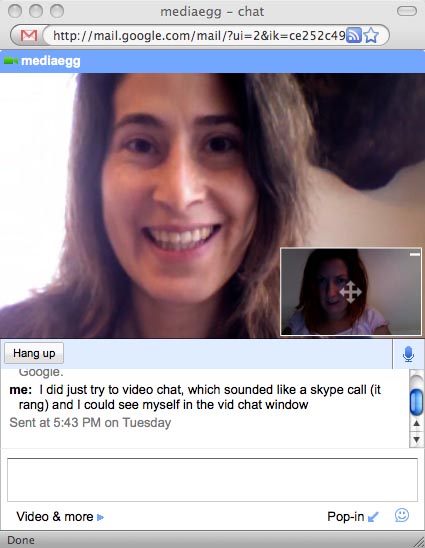
I invited her to video chat and within moments and after just a few rings, the video chat window opened, and there was Kris. The picture was clear, the sound was clear.

Right away I thought “This is much better than Skype.”

Don’t get me wrong. I love Skype, but it can fizzle and pop now and then. WWD blogger Samuel Dean also tested Gmail voice and video chat and points out that it falls short compared to Skype because it doesn’t connect calls to landlines and doesn’t offer voice mail. It does, however, allow you to record a video chat. Ah, the possibilities!

Right away, Kris echoed my feelings that Gmail voice and video chat is convenient and a great addition to the Google suite of tools - perfect, for example, to use while reviewing a Google Doc with someone else. Having video and voice chat within Gmail also means you’ll get more functionality with less open applications and windows.

Gmail voice and video chat

Some quick things to know before you dash off to download the video chat add-on for your browser:

1. Your account must be activated by Google for video, and this could take a few more days.

2. Your chat friend must have Gmail voice and video chat add-on installed for it to work. Otherwise they will be directed to the download page for the add-on.

3. You can tell if a friend is video-chat enabled by a little video camera icon to the left of their name on the contacts Chat List in your Gmail account.

4. You can invite someone to video chat with the Video Options button at the bottom of the chat box.

5. You can pop out the video into it’s own window and move it around as well as open it to full screen.

One possible software conflict? The latest Flash player may interfere with the proper installation of the video add-on (this is just a guess from Scott who eventually switched computers and was able to video chat immediately).

Troubleshooting tips? Make sure your browser is closed before you install the add-on. Then you may have to restart your browser a few times until it takes. Just something anecdotal. Probably not in the manual.

Have long did it take to get Gmail voice and video chat to work for you? What do you think you’ll use it for?

Read the rest of this entry »

Say hello to Gmail voice and video chat


I'm a big user of Gmail chat. Being able to switch from email to chat as needed, all within the same app, is really great for productivity. But people can only type so fast, and even with our new emoticons, there are still some things that just can't be expressed in a chat message.

That's why today we're launching voice and video chat -- right inside Gmail. We've tried to make this an easy-to-use, seamless experience, with high-quality audio and video -- all for free. All you have to do is download and install the voice and video plugin and we take care of the rest. And in the spirit of open communications, we designed this feature using Internet standards such as XMPP, RTP, and H.264, which means that third-party applications and networks can choose to interoperate with Gmail voice and video chat.

Once you install the plugin, to start a video chat, just click on the "Video & more" menu at the bottom of your Gmail chat window, and choose "Start video chat." You'll have a few seconds to make sure you look presentable while it's ringing, and then you'll see and hear your friend live, right from within Gmail. You can click the "pop-out" iconto make the video larger, or click the fullscreen iconin the upper left-hand corner for a fully immersive experience. See this all in action in the video below:


Our team is spread between Google offices in the US and Sweden, and video has really changed the way we work. Collaborating across continents and timezones is a fact of life for us, and it sure is easier (and greener) to click "Start video chat" than to get on a plane! And when I do have to visit another Google office, I can use Gmail voice and video chat to check in with my family.

We've just started to roll out Gmail voice and video chat for both PCs and Macs, so if you don't see it right away, don't worry -- it could take a day or so for this feature to be available in all Gmail and Google Apps accounts. If you want to download the plugin right away, visit http://gmail.com/videochat. And if you need a webcam, there are a few models with special discounts through November 30th (I use the QuickCam Pro 9000 myself).
Link - from Official Gmail Blog
Related From Google Blogs:
Tracking flu trends
Almost new in Labs: SMS Text Messaging for chat
Talk face-to-face right from within Gmail
Read the rest of this entry »

Google on Android: Gmail and Contacts

On September 23, T-Mobile announced the world's first Android-powered phone, the G1. The phone comes preloaded with Search, Maps, Gmail with Contacts, Calendar, Google Talk, and YouTube. The applications are easy to use, fully synchronized with the web, and work together in new and innovative ways, as explained in our first post in the blog series: 'Google on Android'. Over the next couple of weeks, we will put the spotlight on each one of the Google applications for Android. Today: Gmail and Contacts. -- Marc Vanlerberghe, Product Marketing Director.

As an engineer on mobile, part of my job includes testing multiple phones. Having to add and update contacts whenever I get a new phone is one of my least favorite things to do. Switching phones is such a hassle in no small part because manually adding my friends' contact information takes so much time.

In the early days of developing Gmail and Contacts for Android, the team set a clear goal to make this problem disappear once and for all. We envisioned a world where your various computers and phones would always be in sync without needing discipline, USB cables, Bluetooth, and synchronization software.

It occurred to us that the best way to synchronize these various pieces of information is to let the device do it on its own while you're not looking, so you never have to think about it. Once you've logged into your Google account on an Android-powered phone it automatically synchronizes all your contacts and Gmail information so everything is always available, regardless of where you are and whether you have cell coverage. Since all your contacts and mail are backed up to the network, they will still be available if you get a new phone or just have multiple phones.


You will also find that Gmail on Android preserves all the nice functionality that you are used to on your desktop, such as starring, archiving, assigning and reading labels, and the conversation view that makes reading email on Gmail so pleasant. You can also configure which labels you want to synchronize to your phone and how much data you want there. More than ever, you are in control of the data that you want to find on your phone. Gmail even syncs your drafts so you can begin a message on the phone and send it from the web, or vice versa. With push email, Gmail offers real-time, two-way synchronization of your email, notifying you of new e-mails even when you're using another application.


Of course, your contacts list in Gmail also syncs to the phone, and any changes you make on the phone sync to your contacts list on the web.

Because this synchronization works in both directions, you can add a contact on the web and almost immediately use it to call the person from your phone. Once you get used to automatic synchronization, you'll wonder how you could ever live without it. We certainly became addicted to it, and we hope you will too!

To learn more about Gmail on the world's first Android-powered phone, visit the Gmail blog

Posted by: Fred Quintana, Software Engineer, Android Team
Related:
Read the rest of this entry »

Voice & Video Chat in Gmail, Get it Now !

We can chat with Gmail friends with integerated chat in Gmail inbox. Hang on, Gmail is making things more interactive with introduction of voice and video chat in Gmail. So, besides typing ‘Hi’ ‘Hello’ - you can speak and see your friend saying ‘Hi’ ‘Hello’ and lots more.

This new feature is all free (as expected from Google) which offer high-quality audio and video and promises to be easy to use. To get started you need to download and install plugin for this new feature. After the install perform:

  • Login to your Gmail account
  • Click “Video and more” menu (bottom of Gmail chat window).
  • Click “Start video chat” & wait till you see / hear your contact.

As explained by Gmail Blog, you can click the “pop-out” icon to make the video larger or click the fullscreen icon in the upper left-hand corner for a fully immersive experience. Checkout the video for all the action:

Don’t see this feature in your Gmail Account?
This feature is being rolled out in a phased manner, you will soon get this feature in your Gmail Account. This gives Gmail all new meaning with ability to interact with voice & video. Wonder what Skype thinks about this?

Read the rest of this entry »

Gmail voice and video chat

I'm a big user of Gmail chat. Being able to switch from email to chat as needed, all within the same app, is really great for productivity. But people can only type so fast, and even with our new emoticons, there are still some things that just can't be expressed in a chat message.

That's why today we're launching voice and video chat -- right inside Gmail. We've tried to make this an easy-to-use, seamless experience, with high-quality audio and video -- all for free. All you have to do is download and install the voice and video plugin and we take care of the rest. And in the spirit of open communications, we designed this feature using Internet standards such as XMPP, RTP, and H.264, which means that third-party applications and networks can choose to interoperate with Gmail voice and video chat.

Once you install the plugin, to start a video chat, just click on the "Video & more" menu at the bottom of your Gmail chat window, and choose "Start video chat." You'll have a few seconds to make sure you look presentable while it's ringing, and then you'll see and hear your friend live, right from within Gmail. You can click the "pop-out" iconto make the video larger, or click the fullscreen iconin the upper left-hand corner for a fully immersive experience. See this all in action in the video below:


Our team is spread between Google offices in the US and Sweden, and video has really changed the way we work. Collaborating across continents and timezones is a fact of life for us, and it sure is easier (and greener) to click "Start video chat" than to get on a plane! And when I do have to visit another Google office, I can use Gmail voice and video chat to check in with my family.

We've just started to roll out Gmail voice and video chat for both PCs and Macs, so if you don't see it right away, don't worry -- it could take a day or so for this feature to be available in all Gmail and Google Apps accounts. If you want to download the plugin right away, visit http://gmail.com/videochat. And if you need a webcam, there are a few models with special discounts through November 30th (I use the QuickCam Pro 9000 myself).
Via: Gmail Blog
Read the rest of this entry »

Google Enables Video Chat Inside Gmail

If you find switching from email to chat using Gmail helpful and convenient, you might be even more glad to know that Google has just enabled voice and video on Gmail’s chat facility. Yes, you read it right, Gmail Chat has become a Skype-like service with pseudo-VOIP features. The new video and voice chat facility offers up an easy-to-use, seamless interface characterized by high-quality audio and video. And that goes without saying that it’s a free service.

To start using the voice and video chat feature in Gmail, you just need to download and install a plugin, which takes almost a few minutes by the way. Make sure that you have enabled the chat facility in your Gmail account then do the following:

  • Login to your Gmail account
  • Click on “Video and more” menu which is located at the bottom of your Gmail chat window
  • Click on “Start video chat”
  • And wait till you see and hear your contact

Additionally, you can make the video screen larger or fullscreen as well. If any of your contact whom you wish to contact via the Gmail voice and video chat facility has not enabled the feature, they will be invited to download and install the plugin. And I don’t see any reason why Gmail Chat users would not want to use this facility. It’s lightweight, sits right on your Gmail and seem to be a pretty stable and robust chat facility.

If Google can fine tune this chat facility some more, Skype ought to be scared.

You may download the video and voice chat plugin here.

Read the rest of this entry »

Gmail for mobile: faster, smoother, and now in more languages

Posted by Peter Baldwin, Software Engineer, Google mobile team

When I joined the Gmail for mobile team a year ago, the mobile client worked like a web application designed for networks that were always available. This was fine on a fast and reliable network, but when you hopped on the subway, network reliability could be a big problem. Today, we're happy to announce Gmail for mobile 2.0 for J2ME-supported and BlackBerry phones. For this version, we changed our fundamental assumption about the network. We re-thought every action that you might perform with the app and tried to solve for the case where there is no signal. We wanted to make the mobile client faster and more reliable and added some other new features along the way.

If you haven't tried Gmail on your phone in a while, try this new version and let us know what you think. Gmail for mobile 2.0 is designed to be more reliable in low signal areas and provides basic offline support for phones like the Nokia N95, Sony Ericsson W910i, and BlackBerry Curve. You can now log into multiple accounts (including both Gmail and Google Apps email accounts) at the same time. Switching between them is as easy as a few button clicks or just hitting + j on phones that have a QWERTY keyboard. We've also added support for multiple mobile drafts, undo (using the menu or the z shortcut), and sending mail in the background (no more staring at the "Sending..." dialog until it finally gets sent). Be sure to check the help page from Gmail for mobile's main menu for a list of all keyboard shortcuts.

To download Gmail for mobile version 2.0, just go to m.google.com/mail in your mobile browser.


Parlez-vous français? ¿Habla usted español? Gmail for mobile 2.0 supports over 35 languages, and the application language will automatically match your phone's language setting.

Link - from Official Gmail Blog
Related:
Google Print Ads Checks In for Results
New in Labs: Canned Responses
Introducing Gmail for mobile 2.0
Down to the wire on white spaces
Read the rest of this entry »

New in Labs: Advanced IMAP Controls

Posted by Jamie Nicolson, Gmail engineer

From the team that brought you Mail Goggles, here comes...Advanced IMAP Controls, a Labs feature that lets you fine-tune your Gmail IMAP experience. You can choose which labels to sync in IMAP -- useful if you find your mail client choking on a big [Gmail]/All Mail folder.

After enabling this Lab, just go to the Labels tab under Settings. You'll see a new 'Show in IMAP' checkbox next to each of your labels. Uncheck the box and the corresponding folder will disappear from IMAP.


There are also some more obscure options for those of you who want to make Gmail's IMAP work more like traditional IMAP providers: you can turn off auto-expunge or trash messages when they're no longer visible through IMAP.

The IMAP protocol allows messages to be marked for deletion, a sort of limbo state where a message is still present in the folder but slated to be deleted the next time the folder is expunged. In our standard IMAP implementation, when you mark a message as deleted, Gmail doesn't let it linger in that state -- it deletes (or auto-expunges) it from the folder right away. If you want the two-stage delete process, after you've enabled this Lab, just select 'Do not automatically expunge messages' under the 'Forwarding and POP/IMAP' tab in Settings.

Similarly, most IMAP systems don't share Gmail's concept of archiving messages (sending messages to the [Gmail]/All Mail folder rather than [Gmail]/Trash). If you'd prefer that deleted messages not remaining in any other visible IMAP folders are sent to [Gmail]/Trash instead, Advanced IMAP Controls lets you set your preferences this way. In the 'IMAP Access:' section of the 'Forwarding and POP/IMAP' tab, find the 'When a message is deleted from the last visible IMAP folder:' option. Select 'Move the message to the Gmail Trash.' If you want to take it one step further, you can select 'Immediately delete the message forever.'
Related:
Read the rest of this entry »

Top 10 little-known Gmail features (Part 2)


Here are five more entries in my list of little-known features begun last week:

5. Smart links on the right
When you get an email that references an address, look to the right and you'll probably see a link from Gmail pointing you to a map of the address on Google Maps. Gmail also recognizes email text that refers to an event (e.g., 'dinner tomorrow at 8pm'), and will give you a link to add it to your calendar. It'll even pick up on package tracking numbers from UPS and link you directly to the tracking page, so you don't have to copy and paste the number. I really like this last one when I order stuff online and want the instant gratification of knowing a package is on its way.

4. Conversation update notification
It can be really annoying to write up a whole response to an email and click send -- only to discover that someone else has already responded. Gmail has a little feature that helps solve this problem. When you're replying to (or reading) a conversation, and someone else replies, a small notification window pops up to let you know. I sometimes think of it as the "prevent embarrassment" notification. Plus, it can save a lot of time by avoiding the series of follow-up emails needed to clear up the confusion.


3. Advanced search
Most people know that searching your archive is a huge part of what makes Gmail useful. But there are a few search features that you may not know about, which can be really handy. For instance, if I want to narrow down my search to only messages sent from Kevin, I can just add "from: Kevin" to the query. You can even search only for messages with attachments by including "has: attachments," or narrow by date with "after:" and "before:" Check out this whole list of advanced search operators.

2. Offline chat
Offline chat is another feature which makes chatting in the context of your email particularly useful. When you're chatting with a friend and they suddenly go offline, you can keep sending IMs and your friends will receive your messages the next time they open Gmail. The chat will show up as a new item in their inbox. And, of course, if you're still online, your friend can go ahead and reply by chat.

1. Create event
Since I use Gmail and Google Calendar at work (through Google Apps), I'm constantly emailing people about meetings, and scheduling them on everyone's calendars. When I'm writing an email to set up an event, I can actually do it all from within Gmail by clicking the "Add event info" link below the subject line. Then choose the time and location for the meeting or party. When you send the email, the event details will be added to to your Google Calendar, and Gmail will send an invitation to the email recipients to add it to their calendars as well.


Link - from Official Gmail Blog
Related From Google Blogs:
Tip: Your email, wherever you are on the web, with Toolbar
Almost new in Labs: SMS Text Messaging for chat
New Google Help Forums
The art of the field study
Read the rest of this entry »

New in Labs: Calendar and Docs gadgets

Posted by Dan Pupius, Gmail engineer

Gmail Labs has been a really fun way to easily try out new ideas and get some of our pet feature requests implemented quickly. We wanted to take this to the next level and let you start adding your own stuff to Gmail. Today we're launching a few Labs experiments that let you add gadgets to the left-nav, next to Chat and Labels.

To get you started, we've worked with the engineers from the Calendar and Docs teams on two highly requested features: a simple way to see your Google Calendar agenda and get an alert when you have a meeting, and a gadget that shows a list of your recently accessed Google Docs and lets you search across all of your documents right from within Gmail.

There's a third Lab that allows you to add any gadget by pasting in the URL of its XML spec file (e.g. http://www.google.com/ig/modules/youtube_videos.xml). We realize this isn't very user friendly right now; it's a sandbox mainly aimed at developers who want to play around with gadgets in Gmail. We're not tied to the left-nav as a primary way to extend Gmail -- in fact we think it is relatively limited and doesn't offer scalable real estate. There are also some downsides to the iframe-style Gadgets we're using today -- they can sometimes slow down the page. We're fanatical about speed, so we'll be keeping a close eye on performance.

This is also a chance for us to test the developer infrastructure involved. We're using common gadget infrastructure, such as the Apache Shindig project, and working with other gadget containers to make gadgets more portable.

We're looking forward to your comments in the Labs forum, so send us your ideas, let us know how you like the Calendar and Docs gadgets, and if you've written a gadget that you think works well in Gmail, post it and let us and other users try it out.

A couple of notes:
(1) Try out Anatol's Navbar drag and drop Labs feature so you can easily re-order all the boxes on Gmail's left hand side.
(2) Not all gadgets are fully compatible with https, so if you're connecting to Gmail via https, you may see mixed content warnings caused by parts of the gadgets being served over http. We're working on fixing this where we can.

Link - from Official Gmail Blog
Related:
Google Earth now available for iPhone
Welcome AOL Journals Users!
Traveling by zip-line
Sandbox update
Read the rest of this entry »

Presentando Gmail Chat con Video y Voz

11 noviembre 2008 at 02:00 PM

Soy un gran admirador de Gmail chat. Poder pasar de mi correo electrónico al chat según mi necesidad, y poder hacerlo todo dentro de la misma aplicación, es realmente maravilloso para la productividad. Pero la rapidez con que escribo es limitada, y aún con nuestros nuevos emoticonos, quedan cosas que sencillamente no se pueden expresar en un mensaje de chat.

Es por esta razón que estamos lanzando chat de voz y video – todo dentro de Gmail. Hemos intentado diseñar una experiencia fluida y fácil de usar, con video y audio de alta calidad. Todo lo que tienes que hacer es descargar e instalar el plugin de voz y video, y nosotros nos encargamos del resto. Y en el espíritu de las comunicaciones abiertas, diseñamos esta función usando estándares de Internet tales como XMPP, RTP y H.264, lo que significa que las aplicaciones y redes de terceros pueden escoger interactuar con Gmail chat de voz y video.

Una vez que instales el plugin, para empezar un chat de video simplemente haz clic en el menú de "Video y más" en la parte inferior de tu ventana de Gmail chat, y selecciona "Iniciar chat de video." Tendrás tan sólo unos segundos para asegurarte de que estás presentable mientras que la llamada está timbrando, y luego verás y oirás a tu amigo en vivo, todo desde Gmail. Puedes hacer clic en el ícono para hacer que el video se vea más grande, o hacer clic en el ícono de pantalla completa en la esquina superior izquierda para una experiencia de inmersión total. Observa todo en acción en el video a continuación:


Dado que nuestro equipo está repartido entre oficinas en Suecia y Estados Unidos, nosotros hemos sido usuarios asiduos de esta función. Colaborar entre continentes y husos horarios es parte de nuestras vidas, ¡y es bastante más fácil (y mejor para el medio ambiente) hacer clic en "Iniciar chat de video" que subir a un avión! Y cuando tengo que visitar otra oficina de Google, puedo usar Gmail chat de voz y video para conectarme con mi familia.

Gmail chat de voz y video es gratuito y está disponible tanto para PCs como para Macs. Para empezar a usarlo, visita http://mail.google.com/videochat.


Justin Uberti, Software Engineer de Google
Link - from El Blog de Google para América Latina
Related From Google Blogs:
Tracking flu trends
Almost new in Labs: SMS Text Messaging for chat
Say hello to Gmail voice and video chat
Talk face-to-face right from within Gmail
Tip: Your email, wherever you are on the web, with Toolbar
Read the rest of this entry »

Voice and Video now Available on Gmail Chat

Google announced much awaited video capability for Gmail today. It is available for both versions of chat, chat and GTalk Client. chat users need to download a browser plugin to enable the “Voice and Video” option on chat. Click here to download the plugin.

This feature might not be available to all chat users immediately as the team plans to roll it out in the next one or two days. This feature is built on open-standards so that other applications and networks can interoperate with this feature on chat.

takes this launch one step further by offering discounts upto 30% on selected Logitech cameras at Buy.com. Click here to see the camera’s on offer.

This feature kind of completes the feature list for GTalk as now I don’t have to logon to any other service for a quick video chat.

Watch the video below to see how the Chat Video works.

Update: Voice and Video are currently available on chat only. GTalk Client does not carry this feature yet.


Read the rest of this entry »

Talk face-to-face right from within Gmail

From viewing videos on YouTube to screening family events, people love being able to watch something exactly as it happened. And as webcams have become popular, more and more of us are realizing that video is the next best thing to an in-person conversation. Today we're introducing Gmail voice and video chat, which lets you have free voice and video conversations right from within Gmail.

Video chatting from Gmail is as easy as sending an instant message. With our team spread out across Google offices in Sweden and the U.S., it's been really handy in helping us work together. Just click on the new "Video & more" menu in a Gmail chat window and select "Start video chat" or "Start voice chat." You can switch to a full screen view or pop out the chat window and change the size and positioning as you wish. Of course, not everyone has a webcam, but even if you don't, you can still have voice conversations alongside your email and regular chat. Take a look at this short video to see more:


Gmail voice and video chat will be rolled out globally over the next day or so for Macs and PCs. The first time you use this feature, you'll be prompted to download and install a small plugin. To get started, visit http://www.gmail.com/videochat or click on the "Options" menu in a Gmail chat window and choose "Add voice/video chat." Find out more on our Gmail Blog.

Link - from Official Google Blog
Related From Google Blogs:
Tip: Your email, wherever you are on the web, with Toolbar
Almost new in Labs: SMS Text Messaging for chat
New in Labs: Calendar and Docs gadgets
Read the rest of this entry »